
How to connect stream alerts to OBS?
Live streaming is one of the most effective ways to build a community and gain financial support. Whatever platform you stream on, whether that's YouTube, Twitch, Kick or Facebook, it's important that payments from viewers show up on screen in real time.
Thanks to Tipped's integration with OBS Studio, you can display stream alerts that notify you of every payment, boosting viewer motivation to support you and building a stronger connection with your audience.
In this article, we'll show you step by step how to easily connect Tipped alerts to OBS so you can start using this feature during your very next stream.
What will you need?
- A computer with OBS Studio installed
- A Tipped.pay account and the link to your stream alert from the Tipped panel
How to connect Tipped stream alerts to OBS?
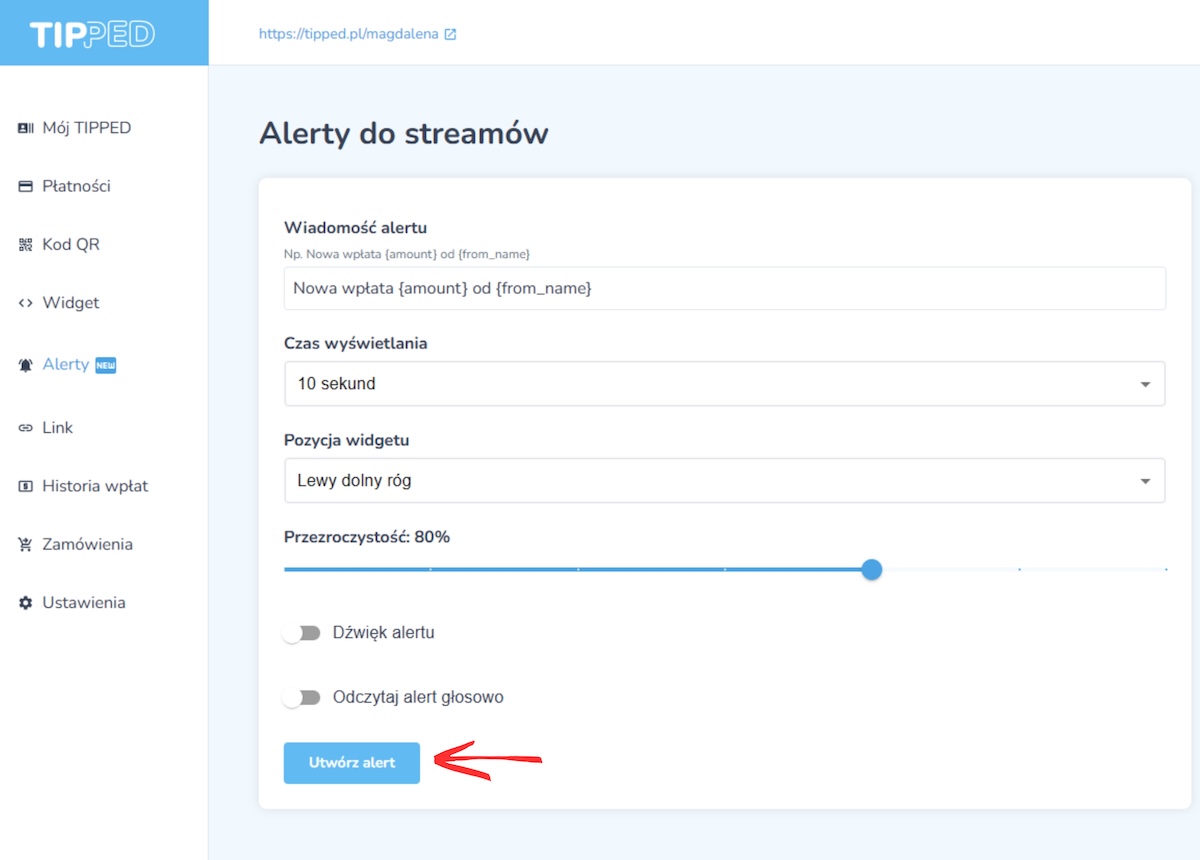
- Create a stream alert in your Tipped user panel
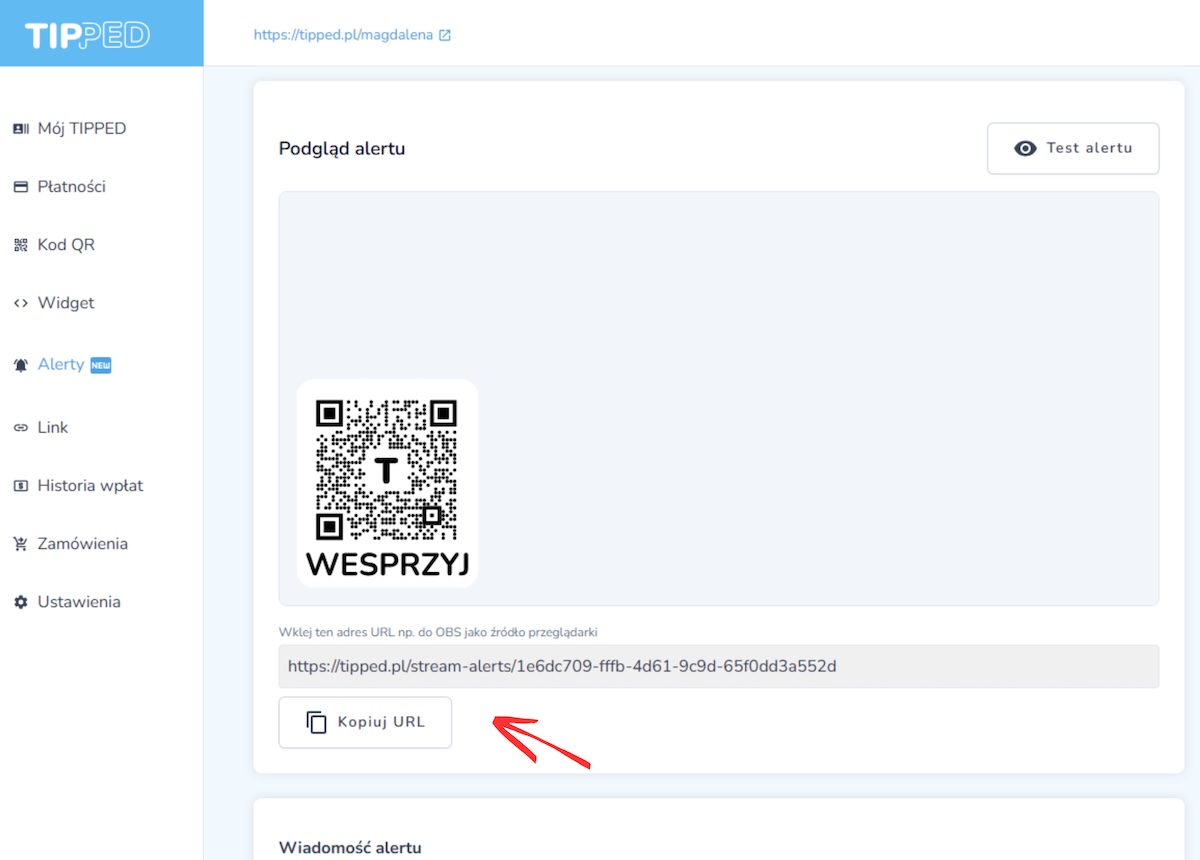
- Copy the link to your stream alert
- Open OBS Studio
Make sure you already have your stream scene set up (camera, microphone, etc.). - Add a browser source
In the "Sources" section, click "+"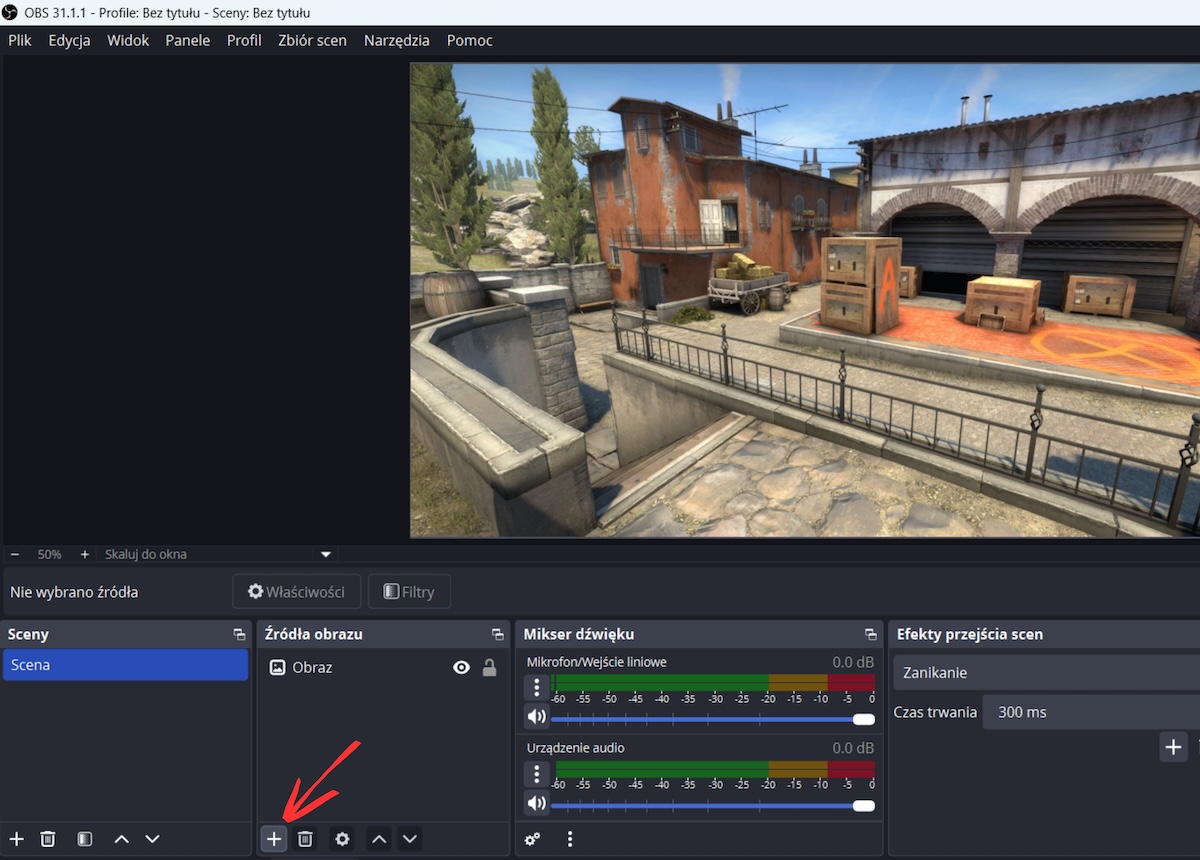 and choose Browser.
Name the source, e.g. Tipped alert, then click "OK".
- Paste the widget link
Copy the link from the Tipped panel, then paste it into the field provided in OBS. You can also edit the alert's width and height depending on where you're streaming. Confirm the changes with the OK button.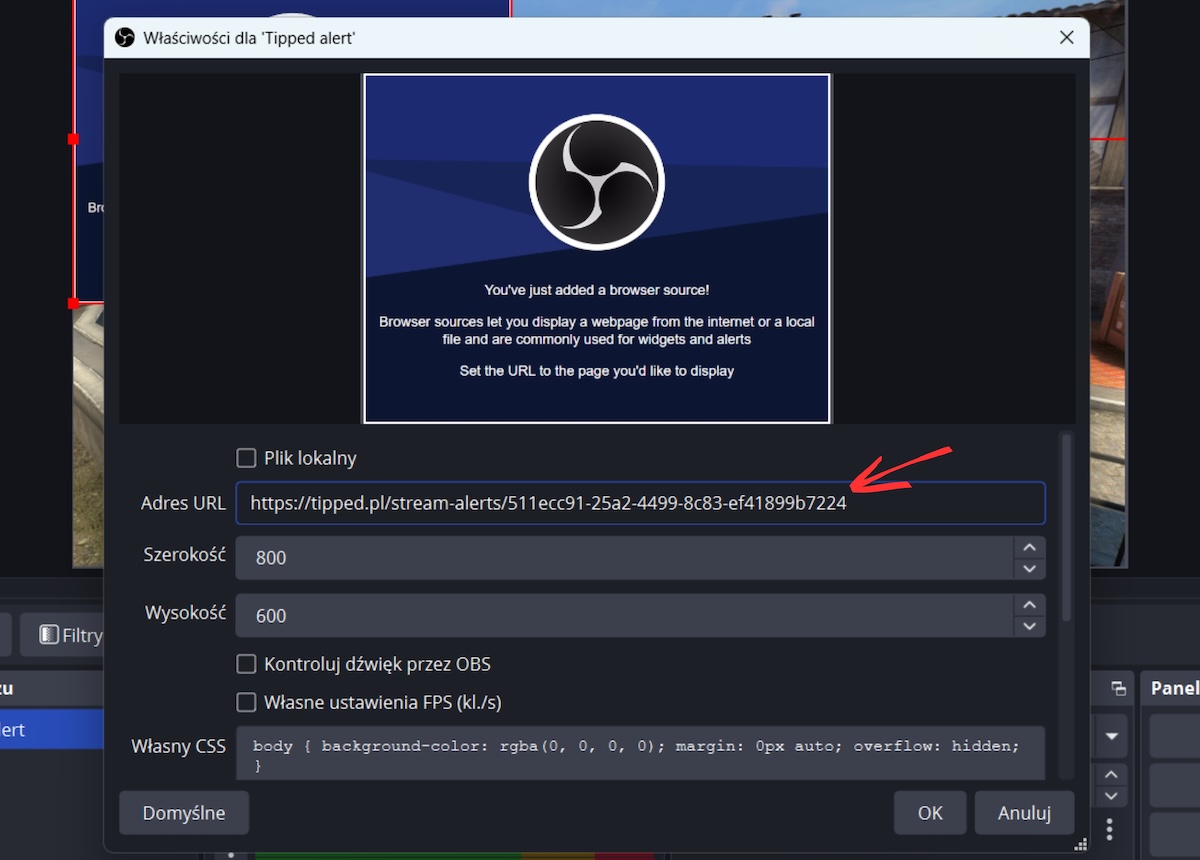
- Set the position and size
Drag and resize the alert frame in OBS wherever you'd like notifications to appear on your stream.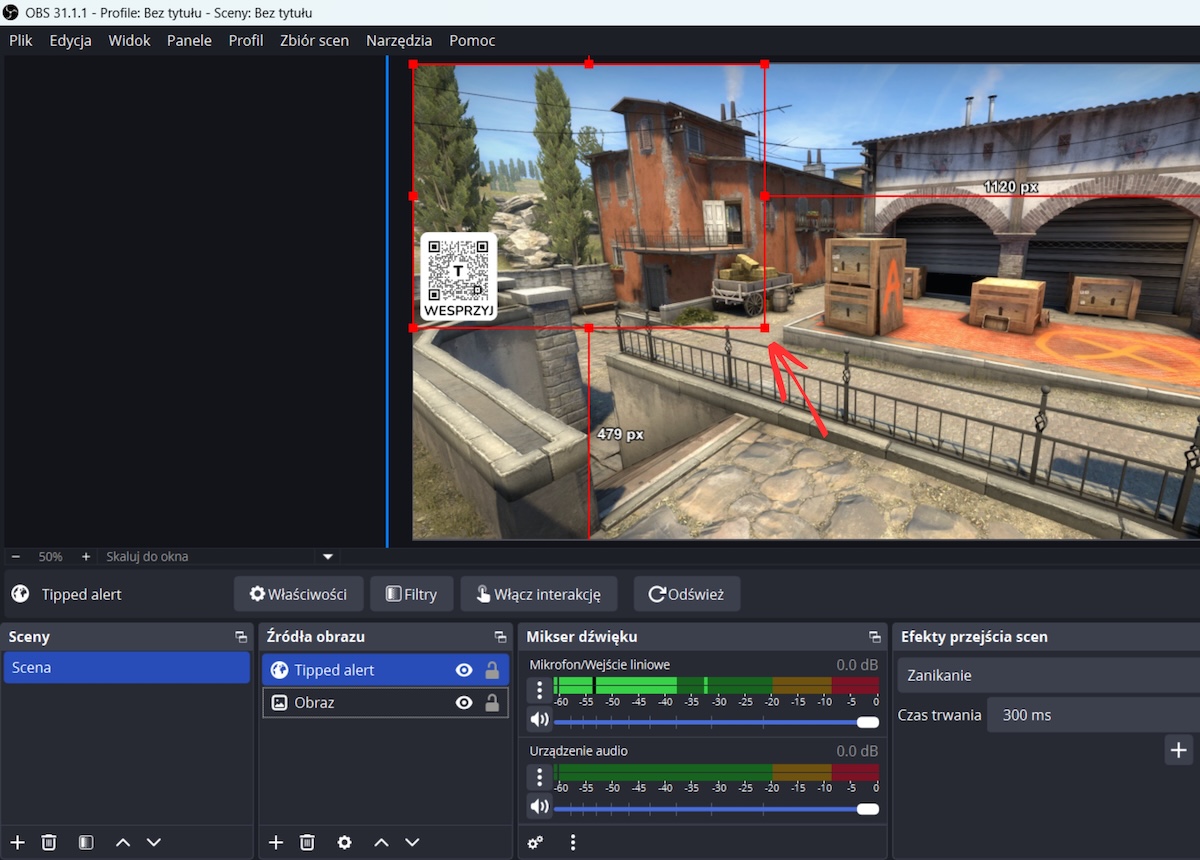
- Test it
In the Tipped panel, click "Test alert" - it should appear in OBS in the exact spot where you positioned it.
Tips from us:
- You can personalise how your alerts look, such as display duration, notification text, transparency level or widget position, all from your user panel
- Add a notification sound or automatic speech for payments above a set amount, it's a more effective way to catch your viewers' attention and motivate them to support you
- If an alert isn't working, check that you have an active internet connection and that the alert URL you pasted is correct

Magda