
How to connect stream alerts to TikTok Studio?
Going live on TikTok and want it to look more professional? Add stream alerts! With them, every payment from your followers will appear on screen, making your broadcasts even more interactive and engaging.
See how, without downloading any extra apps, you can set up notifications in TikTok Studio in just a few minutes:
What will you need?
- A TikTok profile and be 18 or over, to monetise your content
- A Tipped.pay account and the link to your stream alert from the Tipped panel
How to connect Tipped stream alerts to TikTok Studio?
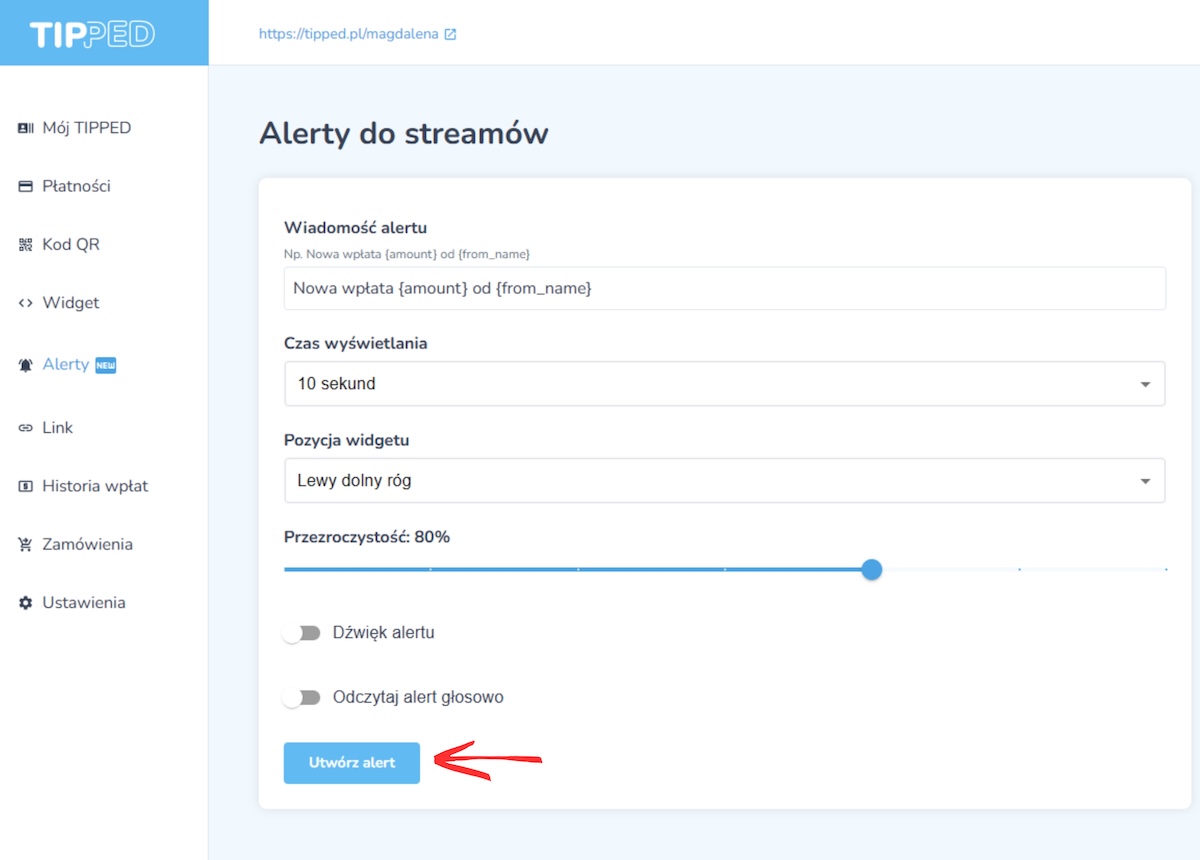
- Create a stream alert in your Tipped user panel
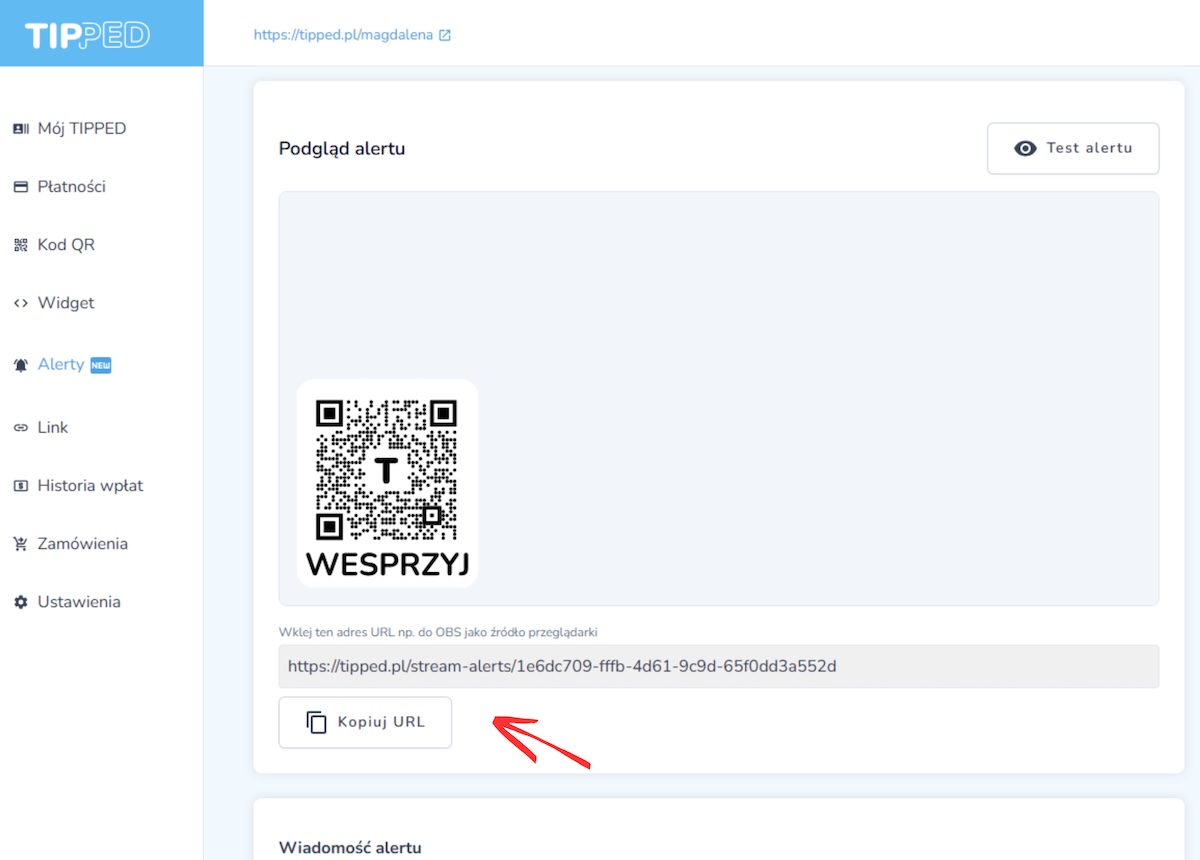
- Copy the link to your stream alert
- Open TikTok Studio
Make sure you already have your stream scene set up (camera, microphone, etc.). - Add a source
In the "Sources" section, click "+"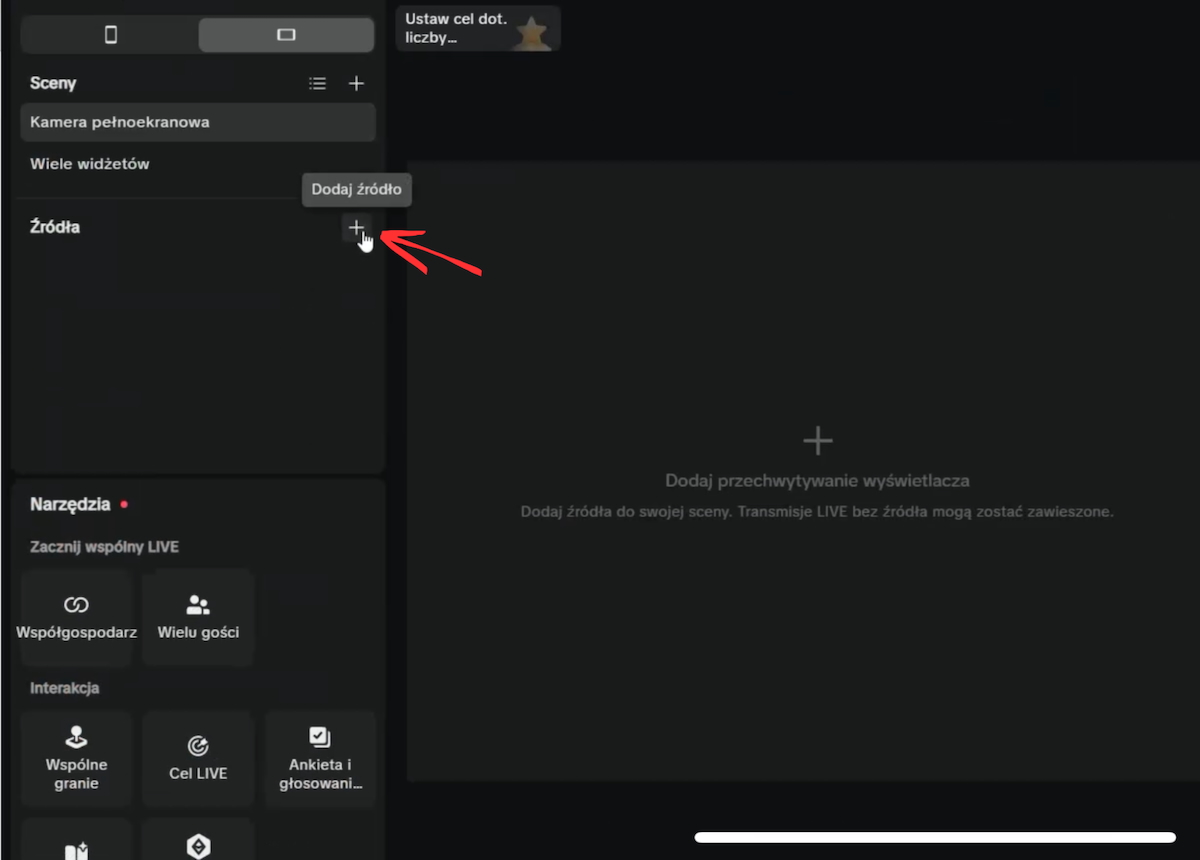 Choose Link
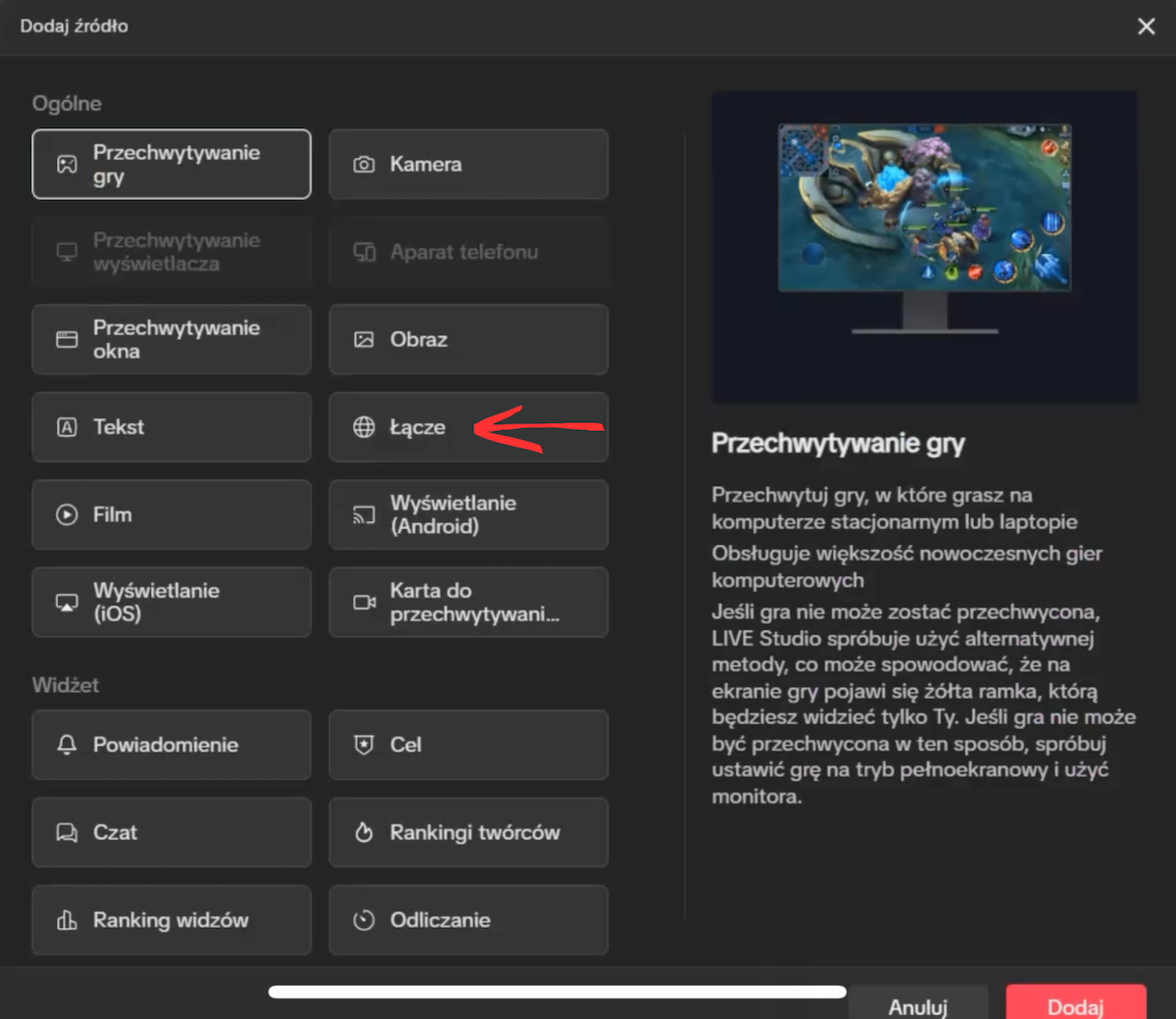
- Paste the widget link
Copy the link from the Tipped panel, then paste it into the field provided in TikTok Studio. You can also edit the alert's resolution, mute the sound, or preview how the alert will be displayed. Confirm the changes with the "Add source" button.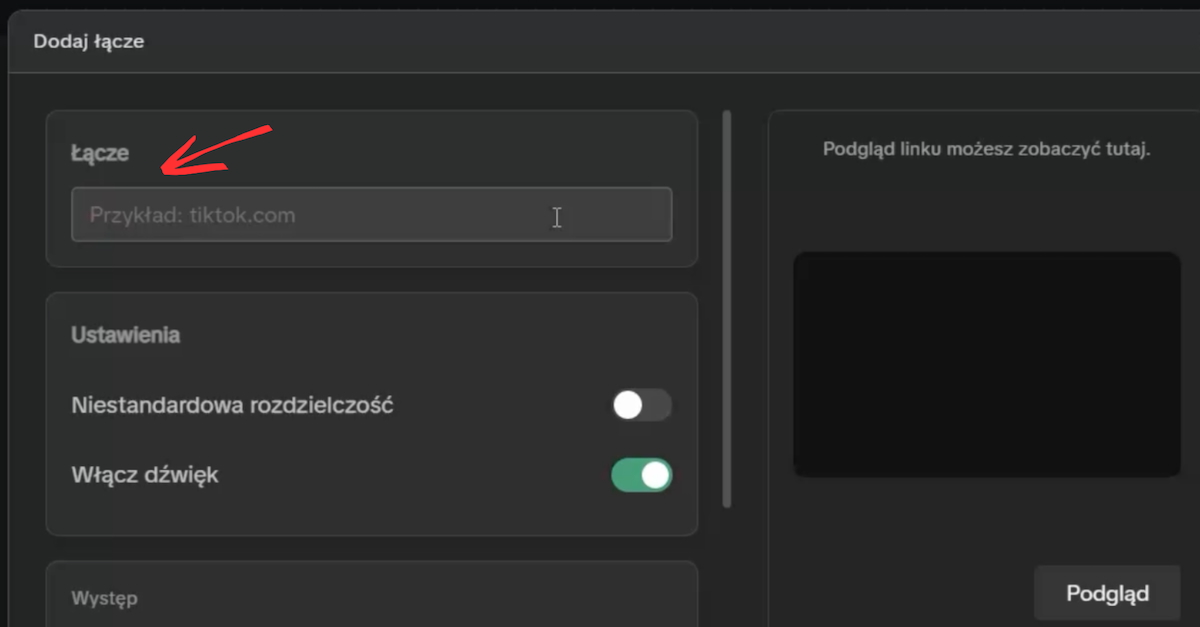
- Set the position and size
Drag and resize the alert frame wherever you'd like notifications to appear on your broadcast.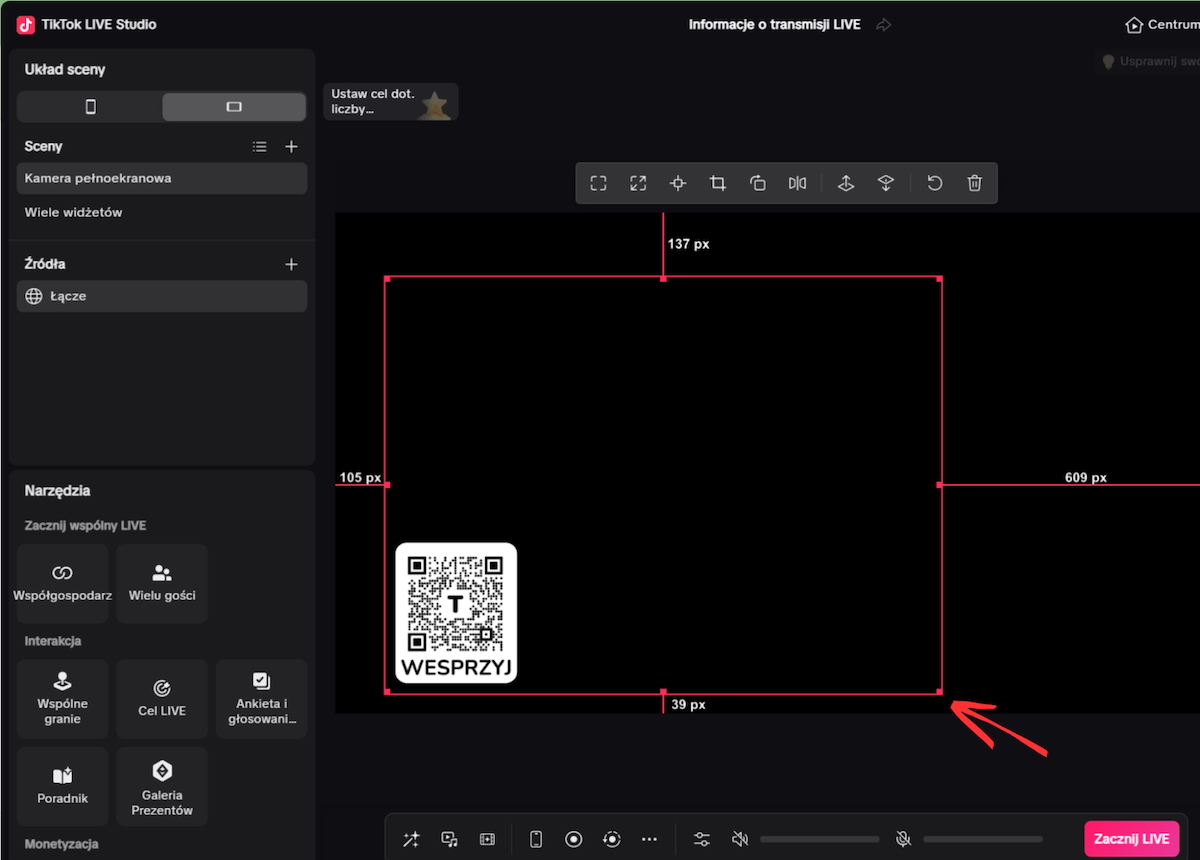
- Test it
In the Tipped panel, click "Test alert" - it should appear in TikTok Studio in the exact spot where you positioned it.
Tips from us:
- You can personalise how your alerts look, such as display duration, notification text, transparency level or widget position, all from your user panel
- Add a notification sound or automatic speech for payments above a set amount, it's a more effective way to catch your viewers' attention and motivate them to support you
- If an alert isn't working, check that you have an active internet connection and that the alert URL you pasted is correct. If you run into any issues, get in touch with us

Magda